
You drop your logo onto a dark website header, and there it is: a white box around it, like a sticker someone forgot to peel. It looks cheap, and it's worse on a product photo, where the box hides part of the picture. Here's how to create a transparent logo that sits cleanly on any color or image.
The fix itself is quick once you know what's going on. A transparent logo is a file where everything outside the mark is empty, and only a few file types can store that emptiness. So the work comes down to two things: remove the background, then save in a format that keeps it removed.
To see which tools make that easy, we checked the official help and product pages of six popular options on October 18, 2026. Four of the six let you save a full-size transparent PNG without paying: Adobe Express, Photopea, GIMP and Figma. Canva keeps transparent downloads on its paid plans, and remove.bg's free download is a preview capped at 0.25 megapixels. The steps below cover all six.
How Do You Create a Transparent Logo?
To create a transparent logo, open your logo in an editor that supports transparency, remove the background with a background remover or a selection tool, then export the file as a PNG (or SVG for vector artwork). JPG can't do this, because the format has no transparency channel at all.
The two places it usually goes wrong are fringed edges and a JPG export at the end.
What Makes a Logo File Transparent?
A logo file is transparent when each pixel carries an alpha value, a fourth number next to red, green and blue that says how opaque that pixel is. Pixels with zero alpha are invisible, so whatever sits behind the logo shows through.
Not every format has that fourth number. According to MDN's image format guide, JPEG doesn't support an alpha channel, while PNG, WebP and SVG all support transparency. GIF can mark one single color as transparent, which is why GIF logos often get jagged, fringed edges.
Before You Start
You don't need much. Grab your logo in the highest resolution you have (an original design file beats a screenshot every time), pick one of the six tools below, and have a dark and a light background ready for testing in Step 5.
If you're still deciding what the logo should look like, simple marks are far easier to cut out cleanly. The guides to minimalist logos and monogram logos show why fewer shapes and flat colors travel so well.
Step 1: Start From the Cleanest File You Have
The quality of a transparent logo depends mostly on what you start with. Removing a background from a crisp, flat-colored file takes seconds. Removing one from a blurry photo of a business card takes patience, and the edges still won't be perfect.
Work through this order:
- A vector file (SVG, AI, EPS or PDF from a designer). The background may already be empty.
- A large PNG with a plain, solid background color.
- A large JPG with a plain background.
- A photo or screenshot, as a last resort.
If you have a design file in Figma or Canva, go back to it rather than editing an exported image. Removing a fill or a background layer there is cleaner than cutting pixels out afterward.
Step 2: Pick a Tool That Fits Your File
Here's what each tool's own pages said when we checked them on October 18, 2026, starting with the ones that save a full-size transparent PNG at no cost:
- Adobe Express: free one-click background remover, saves a transparent PNG (Adobe).
- Photopea: free browser editor with a Magic Wand, exports PNG (Photopea).
- GIMP: free desktop editor, add an alpha channel, export PNG (GIMP docs).
- Figma: every PNG export carries an alpha channel, on any plan (Figma help).
- Canva: transparent downloads need a paid plan such as Canva Pro (Canva help).
- remove.bg: free preview up to 0.25 megapixels, full size costs a credit (remove.bg).
Quick rule of thumb:
- Logo on a busy or photographic background? Use Adobe Express or remove.bg. Their automatic removers handle messy edges you'd never select by hand.
- Logo on a flat, solid color? Photopea or GIMP. A color-based selection gets you a sharper edge than AI guesswork.
- Logo built in a design app? Stay in Figma or Canva and remove the fill at the source.
Step 3: Remove the Background
Pick the section for your tool. Each one ends with a transparent canvas, usually shown as a gray-and-white checkerboard.
In Adobe Express

Adobe's page sums up its flow as "Select. Remove. Download." Upload your logo, let the Remove Background tool isolate the subject automatically, and download the result. Adobe's background remover page says it's free with an Adobe account, accepts JPEG, PNG or WebP files up to 50MB, and downloads a PNG that keeps the transparent background.
It's the fastest route for logos on photos or gradients. On a very thin or detailed mark, zoom in afterward and check that the remover didn't eat fine lines.
In Photopea
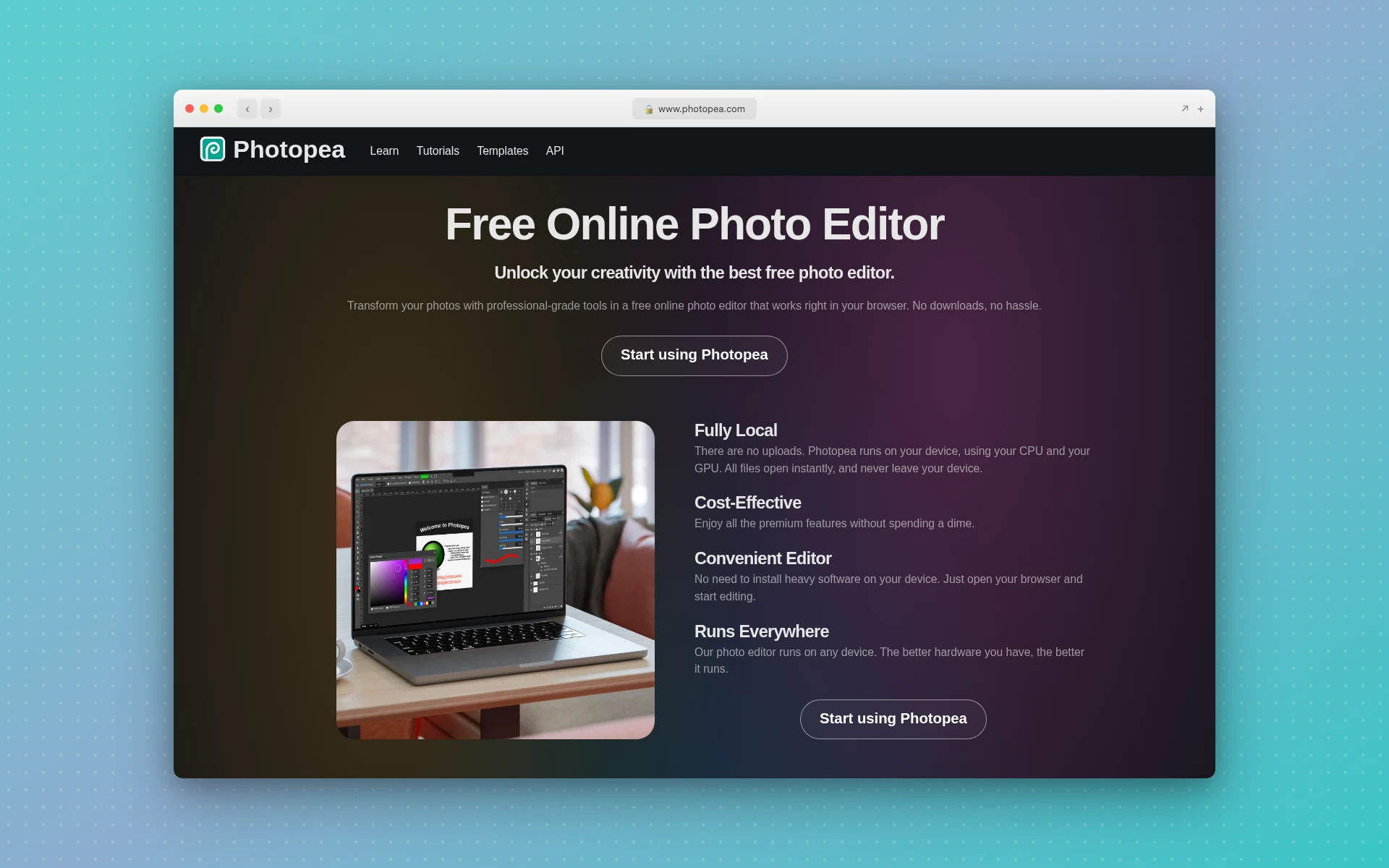
Photopea runs in the browser and works much like Photoshop. Its own tutorial walks through this sequence:
- Open your logo with File > Open.
- Pick the Magic Wand tool and click the background. It selects an area of similar color.
- Hold Shift and click to add other background areas, such as the holes inside an "O" or an "A".
- Press Delete (or Edit > Clear). The background turns into a checkerboard.
Photopea's tutorial puts the key point plainly: "PNG is necessary, because JPG does not support transparent pixels."
In GIMP
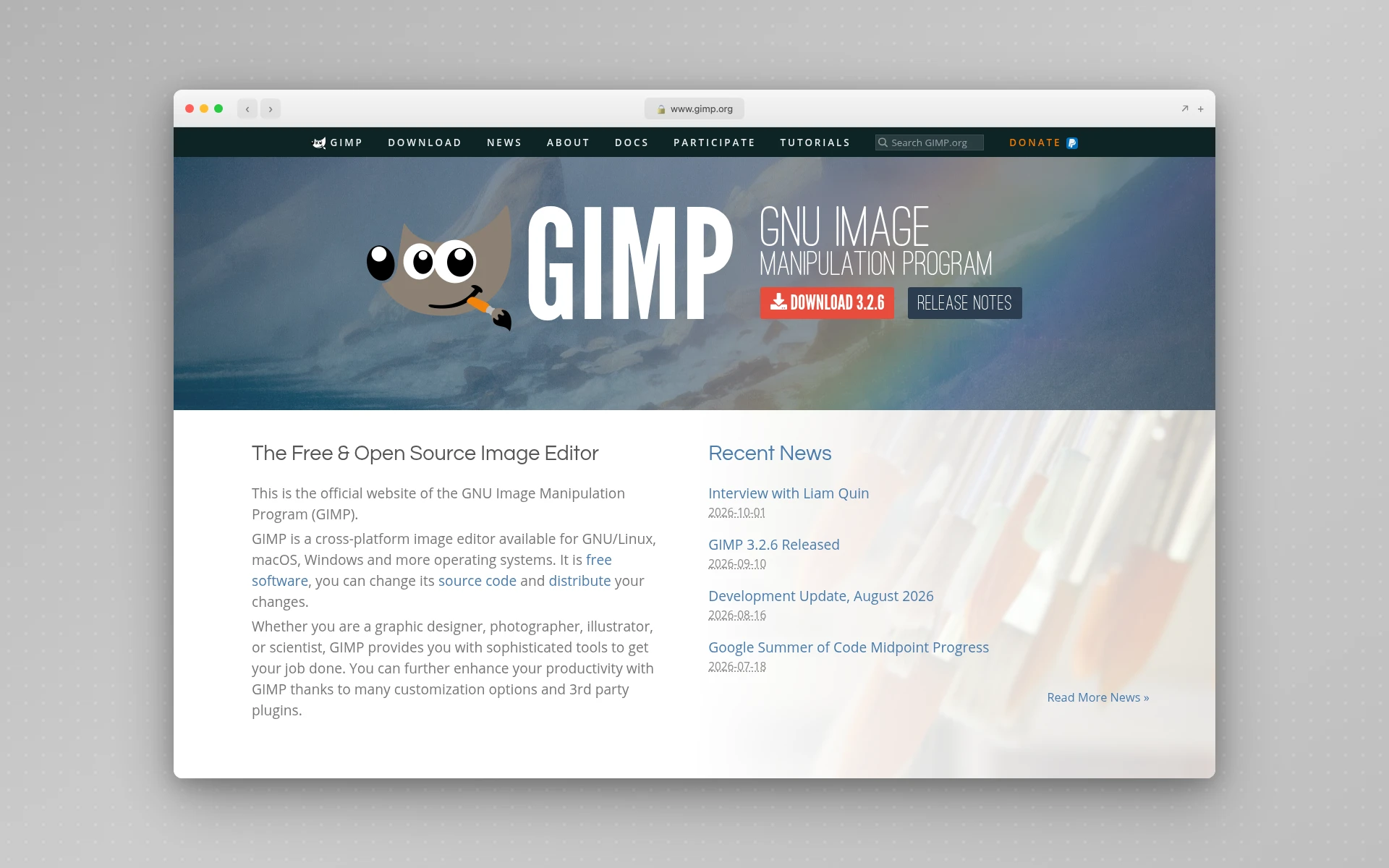
GIMP is free, open-source desktop software. A plain JPG opens without transparency, so you have to add it first:
- Go to Layer > Transparency > Add Alpha Channel. If it's grayed out, the layer already has one.
- For a solid background, use Colors > Color to Alpha and pick the background color. Every pixel of that color becomes transparent.
- For anything trickier, select the background with the Fuzzy Select tool and press Delete.
The GIMP documentation notes that the checkerboard pattern marks the transparent areas, and that PNG stores real alpha transparency where GIF only offers on-or-off.
In Figma

If your logo lives in a Figma file, you probably don't need to remove anything. Select the frame that holds the logo and delete its fill in the right-hand panel, rather than just hiding it. Then export the frame as PNG.
Figma's help center says it exports 32-bit RGBA PNGs and that "it's not possible to export PNGs without an alpha value", so any area without a fill comes out transparent. Per Figma's export guide, exporting is available on every plan, the free Starter plan included.
In Canva

Canva has a background remover for images and a transparent download option, but Canva's help center lists both as paid features (Canva Pro, Teams, Business, Education and Nonprofits). On a paid plan, delete the page background or use BG Remover on an uploaded logo, then download as PNG with the transparent background option ticked.
On the free plan, you can still build the logo in Canva, download it on a solid background, and remove that background in one of the free tools above.
With remove.bg
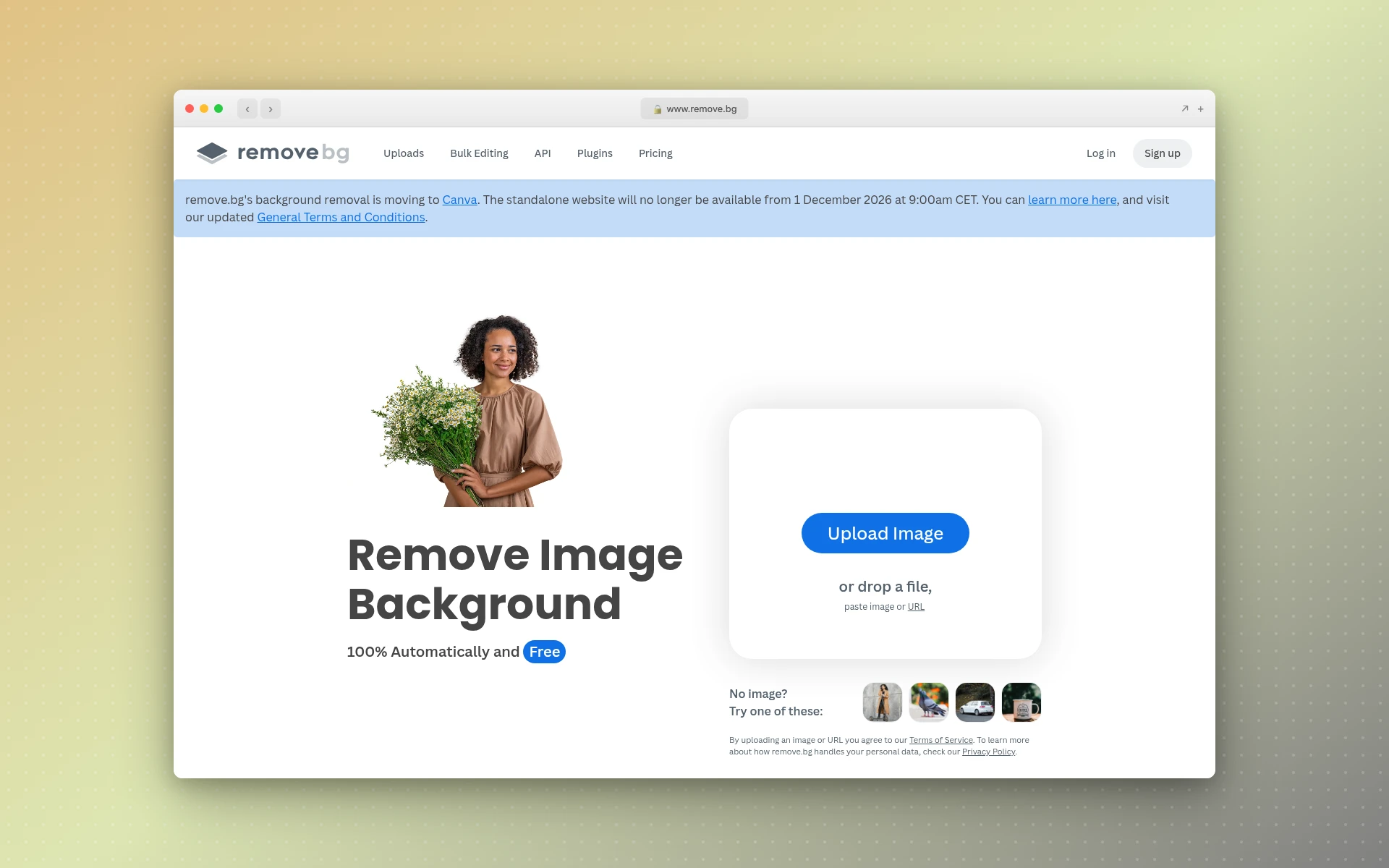
remove.bg does one job: upload an image, and it strips the background automatically. The catch is size. Per remove.bg's help page, the free website download is a preview of up to 0.25 megapixels (about 625 x 400), and a full-resolution file, up to 50 megapixels, costs 1 credit.
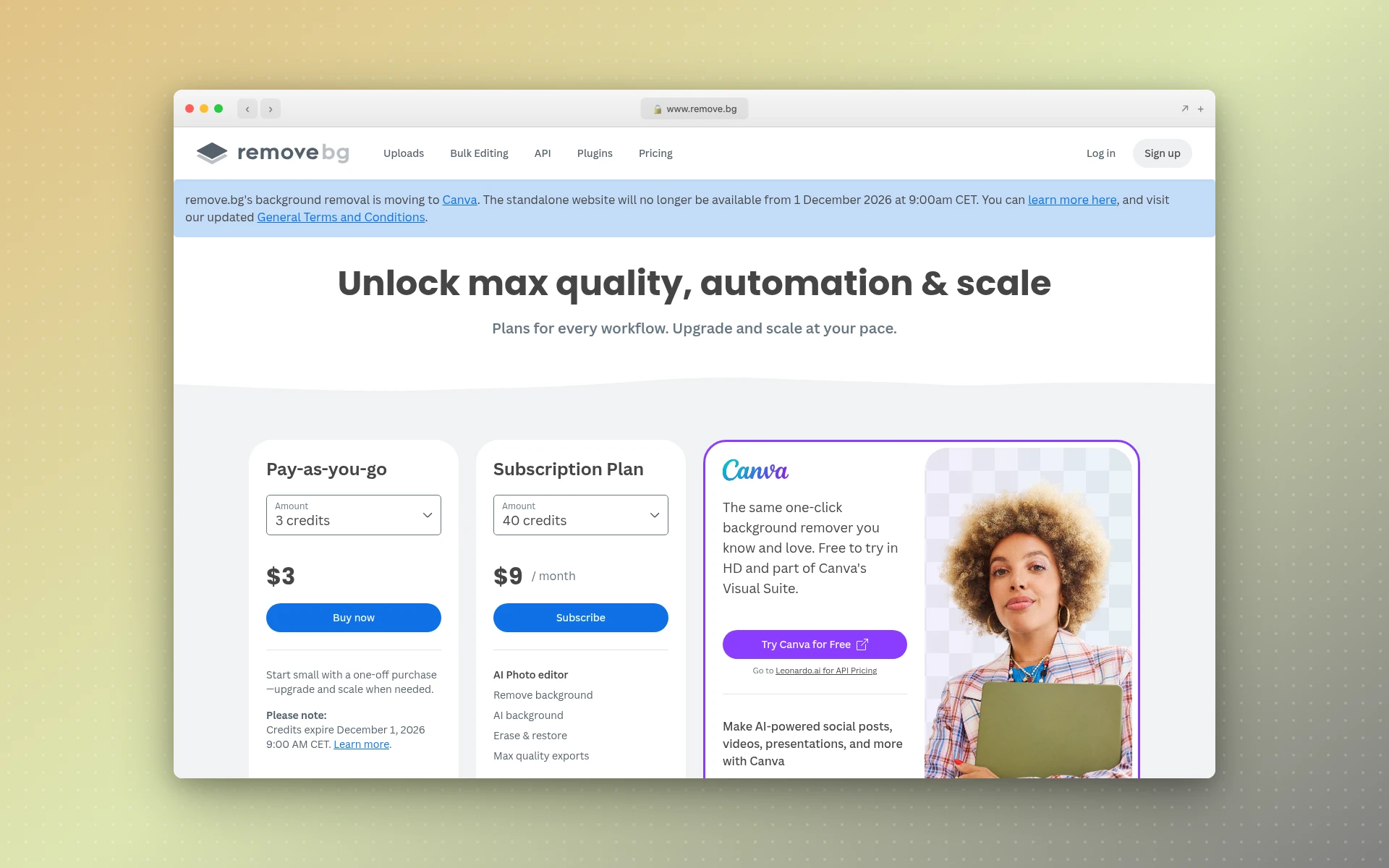
A 625-pixel-wide file is fine for an email signature or a small avatar. It's too small for print or a large website header.
Step 4: Export as PNG (or SVG)
This is where most transparent logos die. You can remove a background perfectly and lose it all by saving to the wrong format.
- Save as PNG for almost every use: websites, slides, social profiles, documents.
- Export at least 2x the largest size you'll display. A logo shown 300 pixels wide should be exported around 600 or more, so it stays sharp on high-density screens.
- Add SVG too if your logo is vector artwork and you're putting it on a website. Figma exports SVG directly; its help center notes that text is outlined into shapes by default.
- Name it clearly, for example
brand-logo-transparent.png, so nobody grabs the old white-box version later.
Never save the final file as JPG. Even if the editor showed a checkerboard, the JPG will fill those pixels with a solid color.
Step 5: Test It on Dark and Light Backgrounds
Open a blank slide or document, set the background to near-black, and drop your logo on it. Then repeat with white and with a mid-tone color.
You're looking for three things:
- A faint halo of the old background color around the edges, most visible on dark backgrounds.
- Leftover islands of background inside letters or between shapes.
- Parts of the logo that vanish. A black logo on a black header disappears, transparency or not.
If the logo vanishes on one background, you need a second version, not a better cutout. Keep a dark and a light variant for exactly this reason. The color palette generator can help you choose a contrasting color for the second version.
Can a JPG Have a Transparent Background?
No. A JPG can't have a transparent background, because the JPEG format has no alpha channel to store transparency, as MDN's format guide confirms. Every pixel in a JPG is a solid color, so the background always shows. Save transparent logos as PNG, WebP or SVG instead.
Watch out for files that look transparent in a preview but are really JPGs, or JPGs with a fake checkerboard painted into the image. Some free "transparent logo" downloads online are exactly that.
Should a Transparent Logo Be PNG or SVG?
Use PNG for a transparent logo you'll share, upload or drop into documents, because nearly every app accepts it. Use SVG when the logo is vector artwork going on a website, since it stays sharp at any size and is usually small. Many brands keep both: PNG for everyday use, SVG for the site.
One caveat: an SVG is only useful if the logo was drawn as vectors to begin with. Wrapping a pixel image in an SVG file doesn't make it scalable.
Common Mistakes
- Saving the final file as JPG. It undoes the whole job.
- Hiding a background instead of deleting it. Hidden fills and background layers can sneak back in on export, so remove them.
- Starting from a tiny screenshot. You can't add detail back later, and small files show jagged edges once enlarged.
- Missing the inner spaces. The holes inside letters like O, A, B and D need clearing too.
- Never testing on dark backgrounds. A soft white halo is invisible on white and glaring on navy.
- Using one version everywhere. A dark logo on a dark header needs a light variant, not more transparency.
Pro Tips
- Keep the mark simple. Flat colors and clear shapes cut out cleanly. Wordmark logos built from type alone are among the easiest to make transparent.
- Check small sizes. If your logo will become an app or profile icon, preview it at icon size. The guides to mobile app icons and Instagram logos cover how those small, cropped formats behave.
- Trim the empty space. Crop the canvas close to the logo before exporting, so it lines up predictably when someone places it.
- Keep a master file. Save the editable version (PSD, XCF, Figma or Canva design) next to the PNG, so the next change doesn't start from scratch.
Need a Logo First?
If you're reading this because you don't have a logo to cut out yet, start there. You can browse the logo types for direction, or use LogoGen, an AI logo generator that works on paid credits or a plan: you describe your company with its name and a short description, pick a style and colors, and it generates logo options, typically in under 10 seconds per its own FAQ. Download the one you like, then run it through Steps 3 to 5 above to get your transparent PNG.
Frequently Asked Questions
How do I make my logo transparent for free?
Use Adobe Express, Photopea, GIMP or Figma. When we checked their official pages on October 18, 2026, all four let you save a full-size transparent PNG at no cost. Adobe Express removes backgrounds automatically, while Photopea and GIMP give you manual selection tools. Figma exports transparent PNGs from any frame with no fill.
Why does my transparent logo still show a white background?
Usually the file was saved as JPG, which can't store transparency, or the background was hidden instead of deleted before export. It can also be a white area that's part of the image itself. Re-open the original, confirm you see a checkerboard behind the logo, and export again as PNG.
How do I make a logo transparent in Canva?
On a paid Canva plan, remove the page background (or use BG Remover on an uploaded image), then download as PNG with the transparent background option ticked. Canva's help center says transparent downloads aren't available on the free plan, so free users can download on a solid color and remove it in Photopea or Adobe Express.
What resolution should a transparent logo be?
Export at least twice the largest size you'll display it. For a website header showing the logo 300 pixels wide, export around 600 pixels or more. For print, start from a vector file if you can. And keep in mind that remove.bg's free preview tops out at 0.25 megapixels, which is too small for print.
Is a transparent PNG the same as a vector logo?
No. A transparent PNG is still made of pixels, so it blurs when enlarged past its size. A vector logo (SVG, AI, EPS) is made of shapes and scales to any size. Both can have transparent backgrounds. Keep a vector master if you have one, and export PNGs from it as needed.