
You've got a name, maybe a rough idea, and a blank sheet of paper. The hard part of learning how to draw a logo isn't the drawing. It's knowing what to draw first, when to stop sketching, and how a pencil doodle turns into a file a printer or a website will accept.
This guide walks through that whole path in 8 steps: a short brief, a page of tiny sketches, a few bigger redraws, then the move into a vector app, color and testing. You don't need art school. You need a pencil, some patience and one free app.
To pick that app, we looked up five popular drawing apps on October 24, 2026, mostly on their own sites and help pages. Three of the five cost nothing to use (Inkscape, Affinity and Figma's Starter plan), and four of the five draw vector shapes. Procreate is the odd one out: it paints in pixels, which matters more for logos than most beginners expect.
How Do You Draw a Logo?
To draw a logo, write a one-line brief, sketch dozens of small thumbnail ideas on paper, redraw the best two or three larger, simplify them into basic shapes, then trace the winner as a vector in an app like Inkscape or Figma. Add color last, and test the logo at tiny sizes before you export it.
Each of those stages has a trap, and the steps below cover them one by one.
What You’ll Learn
- How to brief yourself so your sketches have a direction
- Why small, fast thumbnails beat one careful drawing
- How famous marks were built from circles and simple curves
- How to get a paper sketch into a vector app, and which app to use
- How to check that the logo survives favicon size and a black-and-white printer
What You Need Before You Start
Paper, a pencil, an eraser and a black fine-liner pen cover the analog part. A phone camera is enough to digitize your sketch. For the digital part, you need one drawing app, and the choice matters because logos need to scale.
Here's what we found on October 24, 2026, with the source for each row linked:
| App | What it costs | Draws in | Runs on |
|---|---|---|---|
| Inkscape | Free and open source | Vectors (SVG is its native format) | Windows, macOS, Linux |
| Affinity | "Free for individuals" | Vectors and pixels | Mac, Windows (iPad "coming soon") |
| Figma | Free Starter plan, paid plans above it | Vectors | Web browser |
| Adobe Illustrator | Paid plan, 7-day free trial | Vectors | Desktop, iPad and web |
| Procreate | One-time App Store purchase, "No subscriptions" | Pixels | iPad |
The "Draws in" column is the one to watch. A vector logo is made of shapes defined by math, so it stays sharp on a business card and a billboard. A pixel drawing has a fixed resolution and gets blurry when you enlarge it. Procreate is a lovely sketching app, but its export list has no vector format, so you'd still need a vector app to finish.
Step 1: Write a One-Line Brief
Before you draw anything, write one sentence: who the logo is for, what the business does, and how it should feel. For example: "A neighborhood bakery that sells sourdough; warm, a little old-fashioned, not fussy."
Then add three words for personality. Warm, sturdy, playful. Precise, quiet, modern. These words become your filter in Step 3, when you're choosing between sketches you like for different reasons.
If the name itself isn't settled, settle it now. A mark drawn around a name you later change is wasted work.
Step 2: Fill a Page With Thumbnail Sketches
Draw small. Thumbnails are quick sketches about the size of a postage stamp, and the goal is quantity: 20, 30, 40 ideas on one or two pages, each taking under a minute.
Small sketches keep you honest. You can't add fine detail to a shape that tiny, so you're forced to find ideas that work as simple silhouettes, which is what a logo has to be anyway.
Try different angles on the same brief:
- The initial. Play with the first letter of the name. The monogram logos guide shows how far one or two letters can go.
- A literal object. A loaf, a wheat stalk, a rolling pin.
- An abstract shape. A form that suggests warmth or rising, without depicting anything. See the abstract logos guide for how those work.
- The name alone, set in a few lettering styles.
Even well-known marks started this way. Nike's history page says Carolyn Davidson "sketched half a dozen options" for the company in 1971, and "none made a strong impression." Phil Knight picked the Swoosh anyway, with the line "Well, I don't love it, but it will grow on me" (Nike). She invoiced $35 for it.
Step 3: Redraw Your Best Two or Three, Bigger
Now step back from your thumbnail pages and circle the ones that still catch your eye. Hold each up against your three personality words from Step 1. Keep two or three that fit, and let the rest go, even the clever ones.
Redraw each finalist larger, about the size of your palm. At this scale you'll notice things the thumbnail hid, like a curve that wobbles or a gap that closes up.
Work in pencil first, then go over the cleanest version with a fine-liner. Bold, dark lines make Step 6 much easier, because tracing tools read strong contrast best.
Step 4: Rebuild the Shape From Simple Geometry
This is the step most beginners skip, and it's the one that makes a hand drawing look like a logo. Redraw your finalist using circles, straight lines and consistent curves instead of freehand strokes.
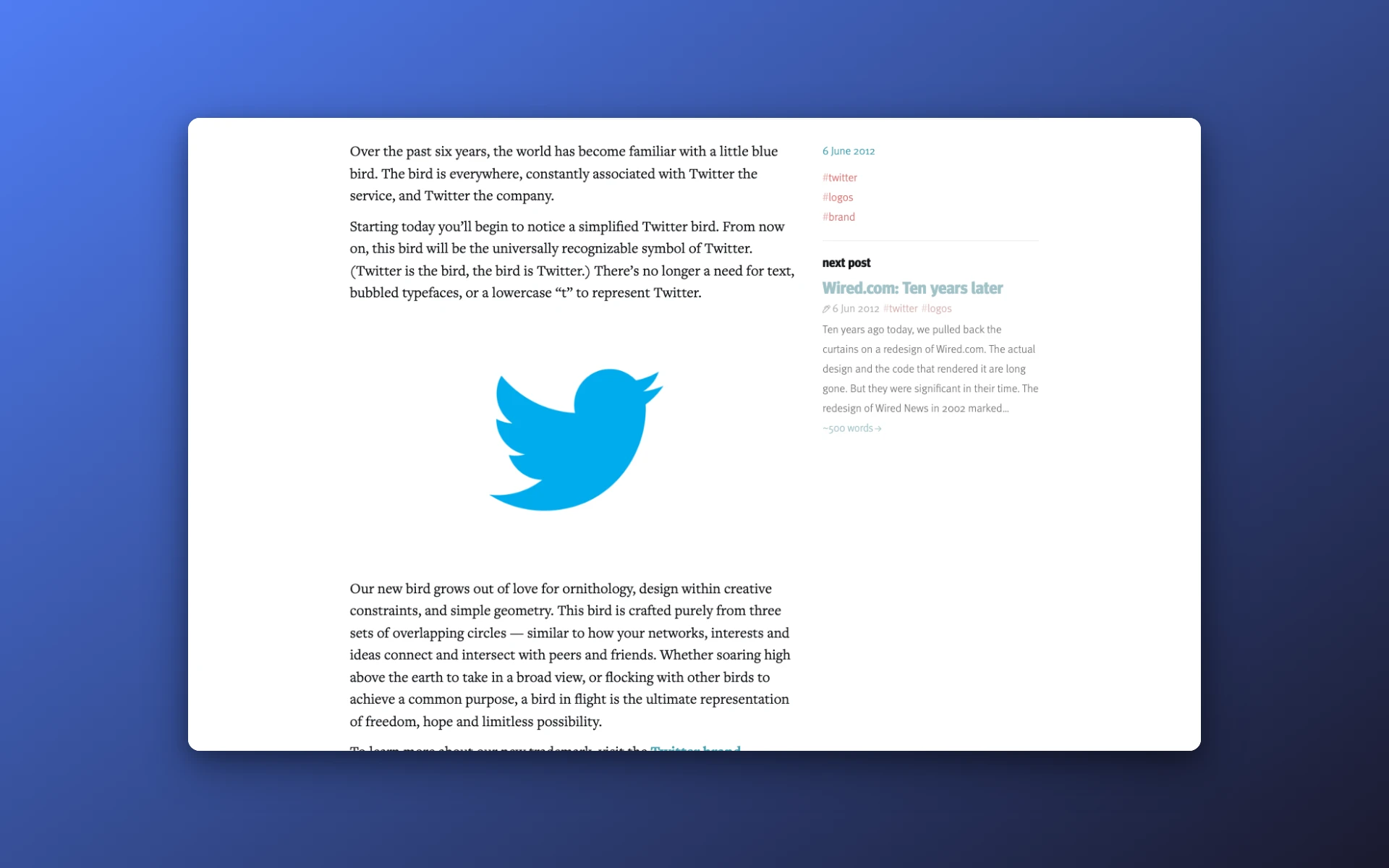
The 2012 Twitter bird is the classic example. Doug Bowman, then Twitter's creative director, wrote that the bird was "crafted purely from three sets of overlapping circles" (Doug Bowman's announcement). Every curve in the outline came from an arc of one of those circles.
You can do the same with a compass, a coin or a jar lid:
- Lay circles over your sketch until their edges match its curves.
- Keep the circles that fit, and erase the rest.
- Use a ruler for any straight edge.
- Repeat the same curve size where you can, so the shape feels consistent.
The result reads as deliberate. It also makes the vector work in Step 6 cleaner, since circles and lines are exactly what drawing apps handle best. The modern logos guide shows how clean geometry keeps a mark flexible.
Step 5: Draw the Name
Most small businesses need the name next to the symbol, at least at first. That pairing is called a combination mark, and the guide to what a logo mark is explains why a symbol alone rarely works for a new brand.
You have two options for the lettering:
- Pick a typeface and adjust it. This is the beginner-friendly route. Choose one that fits your personality words, then tweak the spacing between letters by eye.
- Draw the letters yourself. Harder, but it gives you a one-of-a-kind name. Sketch on a baseline and a cap-height line so the letters stay even.
If the name is short and distinctive, you might not need a symbol at all. The wordmark logos guide covers logos built from type alone.
Step 6: Turn Your Sketch Into a Vector
Take a photo or a scan of your inked drawing, straight on and in even light, then bring it into a vector app. There are two ways to get from that picture to clean shapes: auto-trace or redraw by hand.
Auto-trace it
Inkscape and Illustrator can both convert a picture into vector paths for you:
- Inkscape: import the image, select it, and open Path > Trace Bitmap. The Inkscape manual says the tool works best with "dark silhouettes in front of a bright background", and its centerline mode is "best used with handwritten text."
- Illustrator: place the image with File > Place, open Window > Image Trace, and try the Black and White preset. Adobe's help page describes it as a way to turn pixel images into editable vector paths.
Auto-tracing is fast, but it copies every wobble in your pen line. Expect to clean up the result.
Or redraw it with the pen tool
For a crisp logo, put the photo on a locked layer at low opacity and redraw over it. Use the app's circle and rectangle tools for the geometry from Step 4, and the pen tool for the curves that remain. In Figma, the Pen tool lets you build your own vector shapes for anything the basic shapes can't make.
Keep the number of points low. A smooth curve needs fewer anchor points than you'd think, and every extra one is a chance for a bump.
Step 7: Add Color Last
Get the logo working in solid black on white before you touch color. If it only looks good in color, the shape isn't strong enough yet.
When it holds up in black, pick one main color and, at most, one accent. Fewer colors are easier to print and cheaper to embroider. If you're stuck, borrow a pair from something your business already owns, like its shopfront or its packaging.
Write down the exact color codes as you go. You'll need them for the website, the print shop and anyone who works on the brand later.
Step 8: Test It Small, Then Export
Shrink the logo to favicon and social-avatar size and look at it from across the room. Fine lines and tight gaps are the first things to disappear. If the mark turns into a smudge, simplify it.
Run a few more checks:
- One color. Black on white, and white on black.
- On a photo. Over a busy image, the logo still needs to read.
- Next to competitors. Put it beside the logos of three businesses like yours. It should look like itself, not like theirs.
- A quick search for lookalikes. The USPTO defines a trademark as "any word, phrase, symbol, design, or a combination of these things that identifies your goods or services" (USPTO), so a drawn symbol can clash with someone else's protected one.
Then export. Save an SVG for the website and a large PNG for everything else. Figma's export guide notes that exporting works on any plan, the free one included. For a version that sits cleanly on colored backgrounds, follow the transparent logo guide.
Which App Is Best for Drawing a Logo?
The best app for drawing a logo is a vector app, and for a beginner on no budget that means Inkscape, Affinity or Figma's free Starter plan. Inkscape is free and open source on Windows, macOS and Linux. Figma runs in a browser. Illustrator is the paid industry standard, and Procreate suits sketching but not the final file.
Our check of the five apps on October 24, 2026 boils down to this:
- Inkscape if you want free software with a built-in tracing tool.
- Affinity if you want a full desktop design app at no cost, on Mac or Windows.
- Figma if you'd rather work in a browser and share files easily.
- Illustrator if you're already paying for Adobe's apps.
- Procreate for the sketching stage on an iPad, before moving to a vector app.
Do You Need to Be Good at Drawing to Make a Logo?
No. Drawing a logo is mostly about choosing and simplifying, not about drawing skill. Thumbnails can be scrappy, and Step 4 replaces freehand lines with circles and straight edges anyway. What matters is a clear brief and the discipline to cut detail.
If you can draw a circle with a coin and a line with a ruler, you can draw most of the logos in this list of logo examples from famous brands.
Common Mistakes
- Starting on the computer. Software makes it easy to polish your first idea instead of finding a better one.
- Too much detail. A shape that needs a close look won't survive an app icon or an embroidered shirt.
- Choosing color before shape. Color can hide a weak silhouette until the day you print in black and white.
- Trusting auto-trace blindly. Traced paths keep every bump of your pen. Clean them up or redraw.
- Saving only a PNG. Without a vector master, every resize later is a downgrade.
- Copying a famous mark too closely. Inspiration is fine. A near-copy can land you in a trademark dispute.
Pro Tips
- Flip it. Mirror your sketch or look at it in a phone selfie. Lopsided curves jump out when the image is reversed.
- Squint. Blurring your eyes shows you the logo's overall shape, which is roughly what people see at small sizes.
- Sleep on it. Leave your two finalists overnight. The weaker one is often obvious in the morning.
- Study marks that work small. The minimalist logos guide and these cool logos show how much a simple shape can carry.
- Keep your sketches. Scan the pages. Rejected thumbnails make good starting points for a sub-brand or a seasonal version.
Want to See Some Directions First?
Sometimes the blank page is the real problem. If you'd like a few starting points before you pick up the pencil, an AI generator can give you directions to react to. LogoGen is one option: you describe your business with its name and a short description, pick a style and colors, and it generates logo options, typically in under 10 seconds. Treat what comes back like a page of thumbnails, then refine your favorite through Steps 3 to 8.
Or browse all the logo types to decide which style fits your brand before you start sketching.
Frequently Asked Questions
Can I draw my own logo?
Yes. Plenty of small businesses draw their own logo, and the process is learnable: brief, thumbnails, refinement, geometry, then a vector file. The step that separates a homemade-looking logo from a professional one is usually Step 4, where you rebuild freehand lines from circles and straight edges.
How do I draw a logo for free?
Sketch on paper, photograph the best version, and finish it in a free vector app. When we checked on October 24, 2026, Inkscape and Affinity were free to download, and Figma offered a free Starter plan in the browser. All three let you draw vector shapes, which is what a logo needs.
How do I turn a hand-drawn logo into a vector?
Photograph or scan your inked sketch, import it into a vector app, and either auto-trace it (Path > Trace Bitmap in Inkscape, or Image Trace in Illustrator) or redraw it with shape and pen tools over the photo. Auto-trace is faster. Redrawing gives cleaner curves and fewer points.
Can I draw a logo in Procreate?
You can sketch and develop a logo in Procreate, but it works in pixels, and its list of export formats doesn't include a vector type such as SVG. That makes it fine for ideas and rough drafts. For the final logo file, rebuild the design in a vector app like Inkscape, Affinity, Figma or Illustrator.
Should a logo be drawn in black and white first?
Yes. A logo that works in solid black on white will work in almost any color, while one that relies on color often falls apart on a rubber stamp or a one-color print run. Lock the shape in black first, then add one main color and an accent.